
Contents
Overview
This step-by-step guide shows Client Admins and Organization Owners how to view email communications activity in Next using the Communication Logs.
What are Communication Logs?
Communication Logs show every email sent through the platform, including who received it, when it was sent, and whether it was successfully delivered.
-
Communication Logs help you:
- Check if an email was delivered
- Troubleshoot when someone says they didn’t receive an email
- Find failed emails
- Keep a clear communications record for reporting and compliance
-
Who can view Communication Logs?
- Client Admins
- Organization Owners
⚠️Important Notes:
-
Platform Emails Only: The logs only show emails sent from within the platform, not any sent from outside the platform through integrations or private matters.
- The Communication Logs are Read Only: You cannot click into entries or manage email communications from this area. For help managing your email templates and setup, see these articles:
➡️How to Manage Your Email Communications Template Library
➡️How to Manage Your Email Communications Setup
Step-By-Step Instructions
Access Communication Logs
- Log in as a Client Admin or Organization Owner.
- Click More > Logs in the top menu.
- On the Logs page, click Communication Logs at the top of the screen.
Review Communication Logs
Communication Logs Page Overview
The Communication Logs table shows all emails sent from the platform.
You’ll see:
a. Type: Email
b. Recipient: Email address the message was sent to.
c. Recipient Name: Name of the person or organization who received the email.
d. Subject: Email subject line.
e. Status: Sent, Queued, or Failed
- Sent: The email was sent from Next and accepted by the recipient’s email server.
- Queued: The email is waiting to be sent. It will send automatically based on the trigger conditions set in your Communications Setup.
-
Failed: The email could not be sent.
f. Entity Type: The internal system name for the the item the email is about (e.g., AwardAgreement)
📌Note: These names may look different from the triggers you see in Communications Setup.
g. Date: The date and time the email was sent.
Adjust Your View
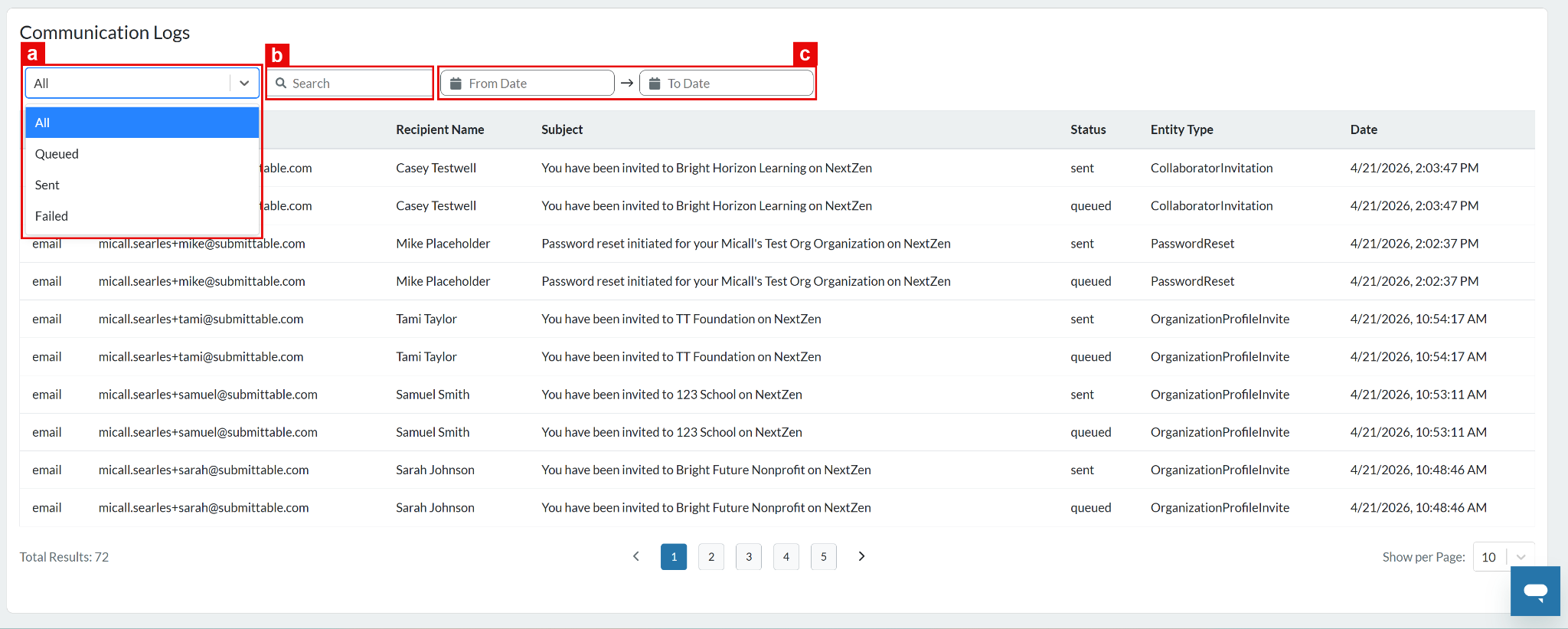
a. Filter by Status: Show only emails with a specific status (Queued, Sent, Failed).
b. Search: Find emails by keyword (e.g., email address, subject line, etc.).
c. Filter by Date: Limit the list view to emails within a certain date range (e.g., from 07/01/2026 to 09/30/2026).
Related Articles
➡️For a full list of all articles related to email communications, see Email Communications.
What did you think of this article? Please leave a comment below!
Your feedback helps us improve the experience for everyone.
Related to
Comments
0 comments
Please sign in to leave a comment.