
Contents
Overview
This step-by-step guide shows Program Admins how to track and manage approval assignments for an award, disbursement, and/or reimbursement (expense).
🔍 Need to send approval requests? See ➡️ How to Request Approvals for Awarding, Disbursements & Reimbursements.
What are Approval Assignments?
When an award, disbursement, or expense goes through the approval process, it has approvers assigned to review it. You assign these approvers when you first create your approval groups. You can edit these approval assignments in your cycle settings (for all future approvals) or within an individual item’s approval request (for in-progress approvals).
-
Who can edit approval assignments?
- Organization Owners
- Client Admins (in partner-managed accounts)
- Program Owners
- Program Managers
Before You Begin
Make sure you're in the right place:
-
Need to change who reviews an award/disbursement/expense that's already been sent for approval? ✅ This is the article for you!
➜ Go to that specific approval request and add or remove an approver. This changes the assignments for that request. It doesn't change your underlying approval group and it doesn't affect any other approval requests.- Follow the step-by-step instructions below.
- Follow the step-by-step instructions below.
-
Need to change who reviews all future awards/disbursements/expenses?
➜ Update the approval group instead. This doesn't affect anything already in progress — only new requests going forward.
Step-By-Step Instructions
Find an Approval Assignment
- Go to the page where the requested approval item lives:
-
Awards: Click Awarding in the left-hand menu, then select “Approvals View” from the dropdown at the top of the page.
-
Disbursements: Click Post-Award > Disbursements in the left-hand menu.
-
Reimbursements: Click Post-Award > Expenses, then open the relevant expense request.
- Locate the approval group assignment column in the table.
Disbursements example:
If your setup includes more than one approval group, each group appears as its own column at the end of the table).
- Find the item you want to add/remove approvers from, then click the hyperlinked count (showing approvals completed out of the total required, e.g. "0/4") in the appropriate group assignment column.
Disbursements example:
The approval assignment column headers will reflect the title(s) you gave the approval group(s) during setup
- The Approvals details panel for that request appears on the right side of the screen.
Disbursements example:
View Approval Details
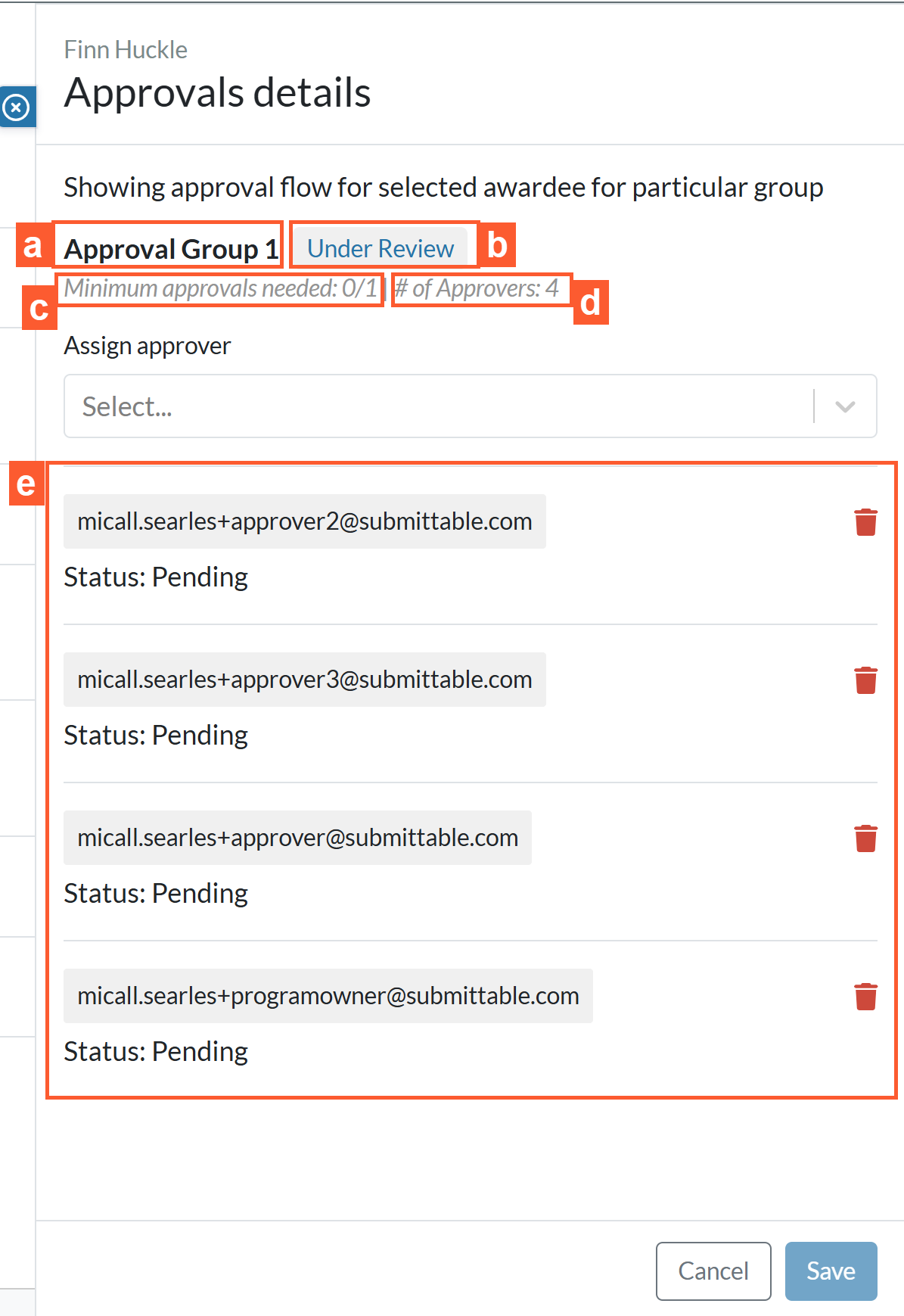
The Approvals details panel shows the following:
a. Group name: The title(s) you gave the group during setup (for example, "Group 1")
b. Approval status: The overall approval status for the item - "Under Review," "Approved," or "Rejected"
c. Minimum approvals needed: How many approvals the group still needs, shown as a count (for example, "0/2"). This number automatically updates as responses come in.
d. # of Approvers: The total number of approvers assigned to the group
e. Approver list: Each approver assigned to the group, listed with their individual status - "Pending," "Approved," or "Rejected"
➜ From the panel you can do the following:
Assign an Approver
| ⚠ |
Important Notes
|
- In the Approvals details panel, use the Assign approver dropdown to select the approver(s) you want to add. You can select more than one.
| ⚠ | Only approvers who've been invited to the program will appear for selection. |
- Click Save in the bottom-right corner of the panel.
- In the confirmation pop-up, click Assign.
- A confirmation message appears in the bottom-left corner of the screen.
What happens after assigning an approver?
- The approver automatically receives an email notifying them of the new assignment. Upon logging into their portal, the item will appear in their assignment list. . For more info about an approver’s experience, see ➡️Approver Experience.
Remove an Approver
| ⚠ |
Important Notes
|
- In the Approvals details panel, click the trash icon
next to the approver’s name.
Don’t see the trash icon? It’s likely because the approver already approved or rejected the item. Only approvers who are still "Pending" can be removed.
2. In the confirmation pop-up, click Remove.
- A confirmation message appears in the bottom-left corner of the screen.
What happens after removing an approver?
- The item is removed from the approver’s assignments. Upon logging into their portal, the item will no longer appear in their assignment list.
Approvers do NOT receive email notifications when they are removed from the group.
Related Articles
➡️Enable Approver Role & Invite Approvers
➡️How to Set Up Approvals for Awarding, Disbursements & Reimbursements
➡️How to Request Approvals for Awarding, Disbursements & Reimbursements
What did you think of this article? Please leave a comment below!
Your feedback helps us improve the experience for everyone.
Related to
Comments
0 comments
Please sign in to leave a comment.