
Contents
- Overview
- What is Award Termination?
- ⚠️Important Notes
- Step-By-Step Instructions
- What Happens After Notifying the Awardee
- Related Articles
Overview
This step-by-step guide shows Program Admins how to terminate an active award in Next.
What is Award Termination?
Award termination is when you end an active award, fully or partially. It's a separate action from a general amendment. You might use this when, for example, a project ends ahead of schedule, the awardee is unable to continue, or the awardee has failed to provide required reports.
-
When you start a termination, you'll choose one of two types:
-
Mutual: You and the awardee agree to end the award together. The awardee can review the termination and accept, request revisions, or decline.
Grantor Issued: Your agency ends the award on its own, without needing the awardee's acceptance. The awardee is notified of the decision but cannot take any actions.
-
Mutual: You and the awardee agree to end the award together. The awardee can review the termination and accept, request revisions, or decline.
-
Who can terminate an award?
- Organization Owners
- Client Admins (in partner-managed accounts)
- Program Owners
- Program Managers
⚠️Important Notes
- Starting a termination pauses post-award activity, including progress reports, disbursements, and reimbursement requests.
-
Progress Reports:
- Awardees cannot start new reports, but drafts already in progress can still be submitted.
- Program Admins can continue to approve or reject submitted reports, but cannot request revisions on a report until the termination process is completed.
-
Disbursements:
-
New disbursements cannot be started until the termination process is complete.
-
New disbursements cannot be started until the termination process is complete.
-
Expenses:
-
Awardees cannot log expenses until the termination process is complete.
-
Awardees cannot log expenses until the termination process is complete.
-
Progress Reports:
- You can cancel the termination any time before you notify the awardee. Canceling un-pauses post-award activity.
- Once an award reaches “Terminated” status, no further amendments can be made on it. After the effective termination date, all post-award activities are frozen.
Step-By-Step Instructions
Open the Award Agreement
- In the program, click the cycle name to open the cycle.
- In the cycle, click Awarding in the left-hand menu.
- Locate the awardee whose award you want to terminate, and click the hyperlinked award agreement.
Terminate the Award
- In the upper-right corner of the award agreement, click Terminate Award.
- In the pop-up, click Initiate Termination.
Clicking Initiate Termination simply starts the termination process. Nothing is sent or final until you notify the awardee.
In the Terminate Award pop-up window, complete the following steps:
As you move through the steps, click Back to return to a previous step, Cancel to clear your work and exit, and Next to move to the next step.
Step 1: Choose termination mode
- Select a termination mode, then click Next.
A. Mutual Termination: Select this when you and the awardee agree the award should end early — for example, the project finished ahead of schedule, the awardee can no longer continue, or the awardee asks to end it themselves.
- What Happens in a Mutual Termination: The awardee must respond once notified – Accept, Request Revision, or Decline. If they decline, the admin can still override the declination and move forward with the termination anyways.
B. Grantor Issued Termination: Select this when your agency needs to end the award without the awardee's acceptance — for example, missed reports, an audit finding, or a policy change.
-
What Happens in a Grantor Issued Termination: The award moves straight to Terminated once notified. There is no back-and-forth that can take place with the awardee.
Step 2: Set the details for the termination
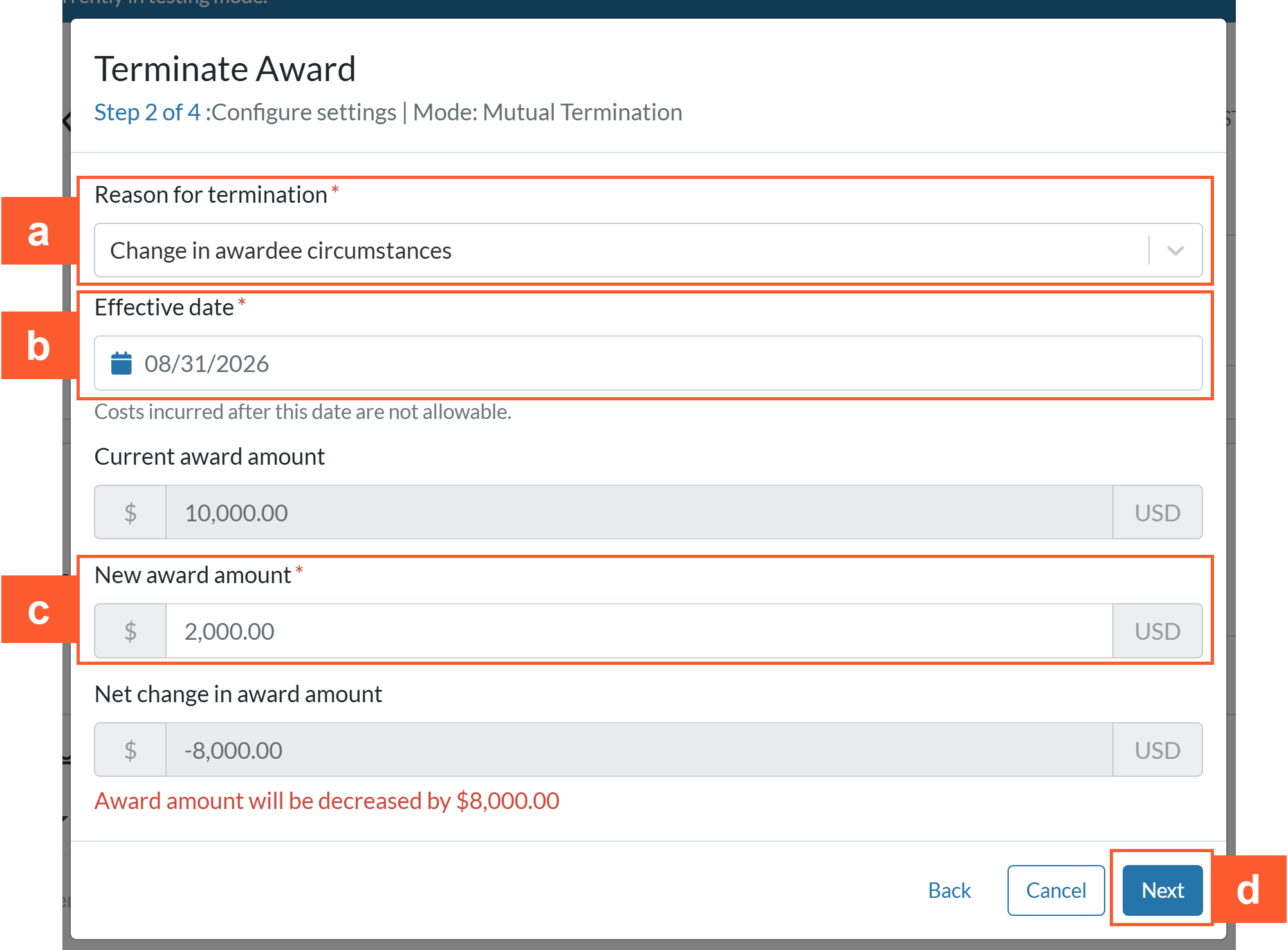
a. Reason for termination: Select a reason from the dropdown. (The available options depend on the termination mode you selected in Step 1- Mutual vs. Grantor Issued).
- This appears in the notification email to the awardee.
- If you choose "Other," you must enter your own text in the “Add Custom Reason” textbox.
b. Effective date: Enter or select a date from the dropdown. This date is when the termination takes effect.
Pending transactions (reimbursements, reports, disbursements) can be completed up to the effective date for termination. After that, all post-award activities are frozen.
c. New Award Amount: Enter the new total for the award. Enter $0 for a full termination, or anything above $0 for a partial termination.
- The current amount is shown for reference, and the net change is calculated for you.
You cannot reduce the award to an amount below what’s already been paid out in expenses/disbursements; the system blocks anything less with an error message.
(Example: A $50,000 award has $20,000 already paid out. You can lower it to $20,000 (a partial termination), but not to $0 — a full termination is only possible if nothing's been paid yet).
d. When finished, click Next.
Step 3: Void Disbursements or Expenses (if required)
If your disbursements and expenses add up to more than the new award amount, a Reconciliation Required window will open and guide you through two steps to free up the amount.
- Review the amount shown in the red message at the top — this is how much you still need to free up.
- Use the Expenses and Disbursements tabs at the top of the window to switch between the two.
- Click Void next to the expense(s) or disbursement(s) you want to remove. (Click the dropdown arrow in the Actions column, on the far-right of the expense, to expand its line items and void them individually).
Voiding is "soft" — voided entries are not deleted, and you can undo them any time before you notify the awardee.
-
In the pop-up box, enter a comment, then click Void.
Expense Void Example: Disbursement Void Example:
- Track your progress using the “Reconciled” tracker at the bottom of the window.
To undo a void, click Unvoid in the Actions column on the far-right of the expense.
6. Once the full amount is freed, click Save & Review Changes. If you'd rather come back to this later, click Skip Reconcile Later.
Step 4: Review Termination Summary
- Review the Termination Summary details.
- If you need to make changes, click Back.
- If you want to clear your work and start over, click Cancel, then click Cancel Edits in the confirmation pop-up.
- Click Save & Edit Agreement
Reminder: Nothing is sent to the awardee until you notify the awardee.
- A confirmation message appears in the bottom left corner of the screen.
Recommended Step: Update the Award Agreement With Termination Language
The termination agreement is a copy of the awardee's last accepted award agreement or amendment. That means its content still reflects the award agreement, not the termination. Update the following items before notifying:
1. Edit or add a Rich Text Editor field to include termination language:
-
Already have a Rich Text Editor field with award details on the agreement? Click inside it to make it editable, and add your termination language, then click Save in the upper-right corner of the field.
- Don't have a Rich Text Editor field in the agreement? Add one the same way you'd add any other form field — see ➡️ Add a Form Field — then add your termination language to it.
2. For Mutual Terminations ONLY: Update the checkbox acknowledgement statement
-
To accept or decline a Mutual Termination:
The awardee must scroll to the bottom of the agreement. At the bottom, they'll see a checkbox with an acknowledgement statement next to it.
The awardee's Accept button won't activate until they check the box.
The default acknowledgement statement is typically written for accepting an award, not ending one.
Awardee's View:
-
To edit the acknowledgement statement text:
Scroll to the end of the termination agreement, and click Edit above the acknowledgement statement.
Write a termination acknowledgement statement. For example: "By clicking Accept, I acknowledge that I have read the termination terms above and agree to end this award as described." Then, click Save.
Notify the Awardee
Notifying the awardee finalizes the termination and sends it to the awardee.
Before Notifying the Awardee
-
Reconcile Funds (if required): Before you notify, make sure funds are fully reconciled. If funds aren’t reconciled, clicking Notify Termination will show an error telling you how much still needs to be freed.
-
To finish freeing up funds: Click the Actions dropdown in the upper-right corner of the agreement, select Reconcile, and follow the instructions in Step 3 above.
-
To finish freeing up funds: Click the Actions dropdown in the upper-right corner of the agreement, select Reconcile, and follow the instructions in Step 3 above.
💡 Need to cancel or edit the termination?
- Up until you notify the awardee, you can click Discard in the upper-right corner of the main agreement screen to clear your work and start over. This also un-pauses post-award activity. |
-
To edit the termination details, click Modify Termination Details in the upper-right corner of the screen.
How to Notify the Awardee
- In the agreement, click Notify Termination in the upper-right corner of the agreement.
- In the pop-up box, enter a comment explaining the termination, then click Terminate.
➜ What happens next depends on the termination mode you chose:
What Happens After Notifying the Awardee
Mutual Termination
- The termination status changes to “Proposed,” and the awardee receives an automatic email notifying them of the proposed termination, with the reason, effective date, original award amount, and new award amount.
-
If the awardee requests a revision:
- The status changes to "Revisions Requested," and you get an automatic email.
- Opening the Termination Request lets you deny it, request clarification, or modify the termination details.
-
If the awardee declines:
-
The status changes to "Declined," and you get an automatic email.
If you still want to issue the termination after a decline, you can restart the process as a Grantor Issued Termination instead. Return to the steps above to issue a new one.
-
-
If the awardee accepts:
- The status changes to "Terminated," and you get an automatic email stating that the award is now terminated, with the effective date, original award amount, and new award amount.
- All post-award activity is frozen after the effective date.
➡️ See Review an Award Termination for what the awardee sees and does at each step.
Grantor Issued Termination
Reminder: In Grantor Issued Terminations, awardees cannot take any actions; they can only view the details.
- The award status changes to “Terminated,” and both the awardee and admins receive an automatic email notifying them of the termination, with the reason, effective date, original award amount, and new award amount.
- The awardee's financials reflect the revised award amount.
- After the termination date, all post-award activities are frozen.
➡️ See Review an Award Termination for the awardee's read-only view.
A Note About Email Notifications
- All termination-related emails are set up by default in the cycle and sent automatically. Awardees will also receive emails for each disbursement or expense that is voided after you notify the termination.
- To learn more about these emails, see ➡️ Post Award Communications: Email Trigger Guide.
- To remove any of these emails or edit the templates, see ➡️How to Manage Your Email Communications Setup + How to Manage Your Email Communications Template Library.
Termination Statuses at a Glance
- Draft: An admin has started a draft termination. The awardee has not yet been notified. You can modify the termination details, discard the termination, or notify the awardee (once notified, you can no longer discard).
- Proposed: A Mutual Termination has been sent to the awardee for review.
- Revisions Requested: The awardee has asked for changes to the proposed termination terms.
- Declined: The awardee has declined the termination.
-
Terminated: Final status, after the awardee has accepted a Mutual Termination or the termination was Grantor Issued.
Related Articles
➡️Initiating General Amendments to Award Agreements
➡️Reduce Award Amount
➡️Increase Award Amount
➡️Review an Award Termination (For Awardees)
What did you think of this article? Please leave a comment below!
Your feedback helps us improve the experience for everyone.
Related to
Comments
0 comments
Please sign in to leave a comment.